XMG Pro 16 m25 under Linux: Maximum GPU Power and Gaming Performance
I’ve been using XMG laptops since 2020. For me, they offer one of the best value-for-money options if you want an elegant machine that works equally well for productivity and gaming. After two Fusion models (m19, then m22), I recently switched to a XMG Pro 16 m25.
Compared to the Fusion, the Pro 16 is a bit heavier, but it comes with a RTX 5070 Ti (12 GB instead of 8 GB) and, more importantly, allows the GPU to draw up to 140 W (versus 110 W on the Fusion). For gaming workloads, this makes a noticeable difference.
As usual, I installed Arch Linux and went through a series of tweaks and adjustments to get the most out of the hardware—especially to let the GPU use as much power as possible when needed. I decided to share what I learned, both for people wondering whether this laptop works well under Linux and, more specifically, whether it is a good choice for Linux gaming.
Spoiler alert: yes—and it’s very good.
Pre-requisites
The advanced BIOS settings are factory-locked. As far as I know, the only way to unlock them is to boot Windows 11 once and install the official XMG Control Center application. This tool provides an option to enable advanced BIOS features, which then allows fine-tuning of memory timings as well as CPU voltage (including undervolting).
In my opinion, this is quite disappointing. It is actually the only reason I had to install Windows 11 on this laptop. I still find it surprising to see such constraints today, especially when Linux desktop and gaming usage keeps growing and has already proven to be superior in many areas.
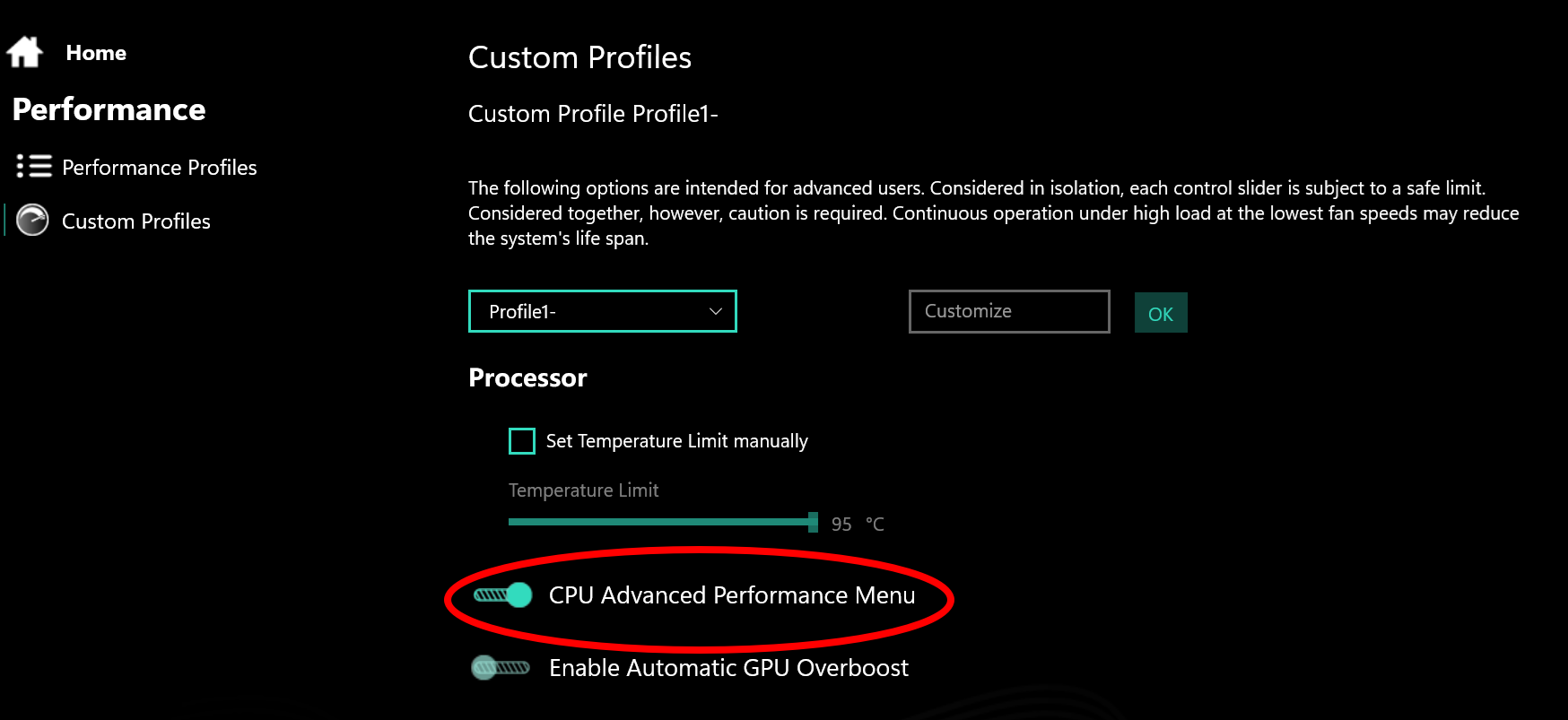
To enable this advanced mode, you first need to create a custom performance profile in the Performance menu of the Control Center:
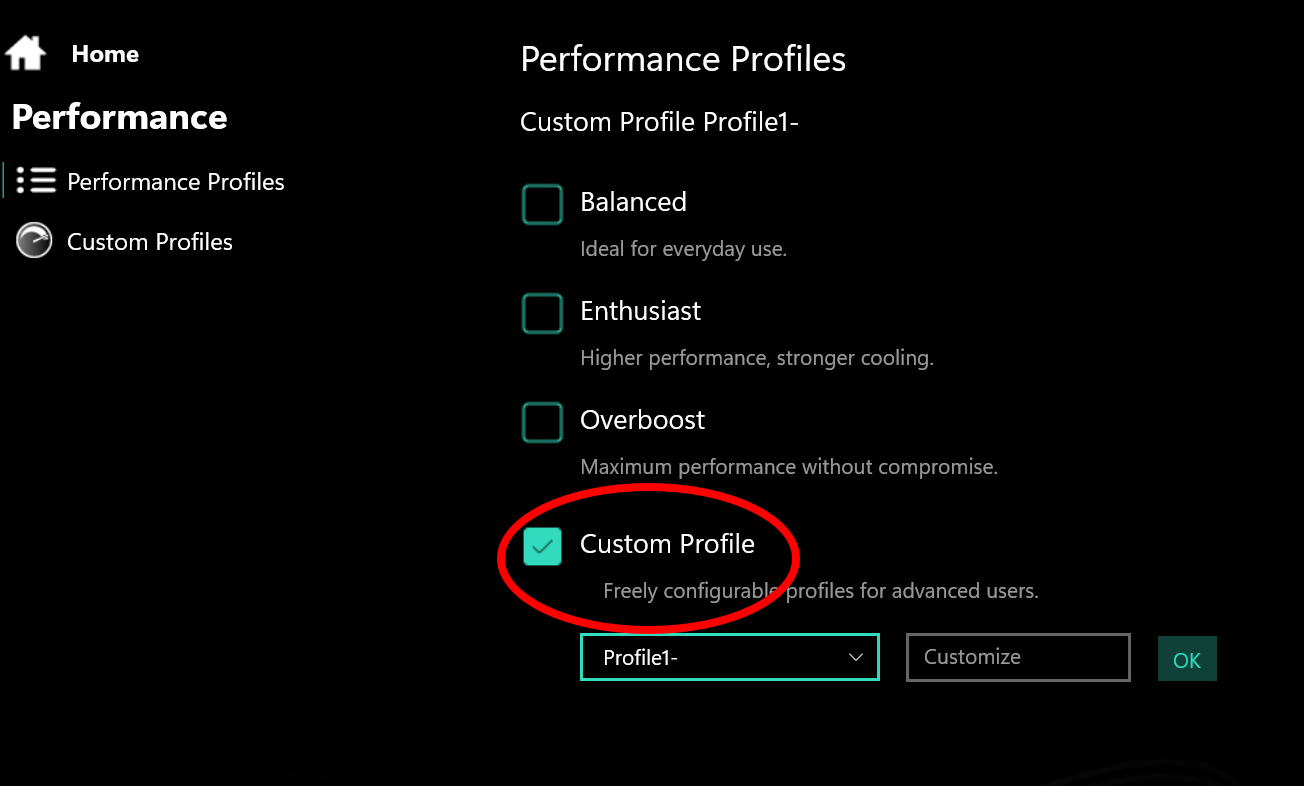
Once this custom profile is selected, a new option called “CPU Advanced Performance Menu” becomes available. Enabling it immediately unlocks the advanced BIOS options.
The good news is that you do not need to keep running Control Center afterward—once enabled, the BIOS remains unlocked permanently.
Memory
My XMG Pro is equipped with 2×16 GB DDR5-6400 CL38 modules with an XMP profile (Kingston KF564S38IBK2-32). However, out of the box, I was surprised to see the memory running at only 4800 MT/s.
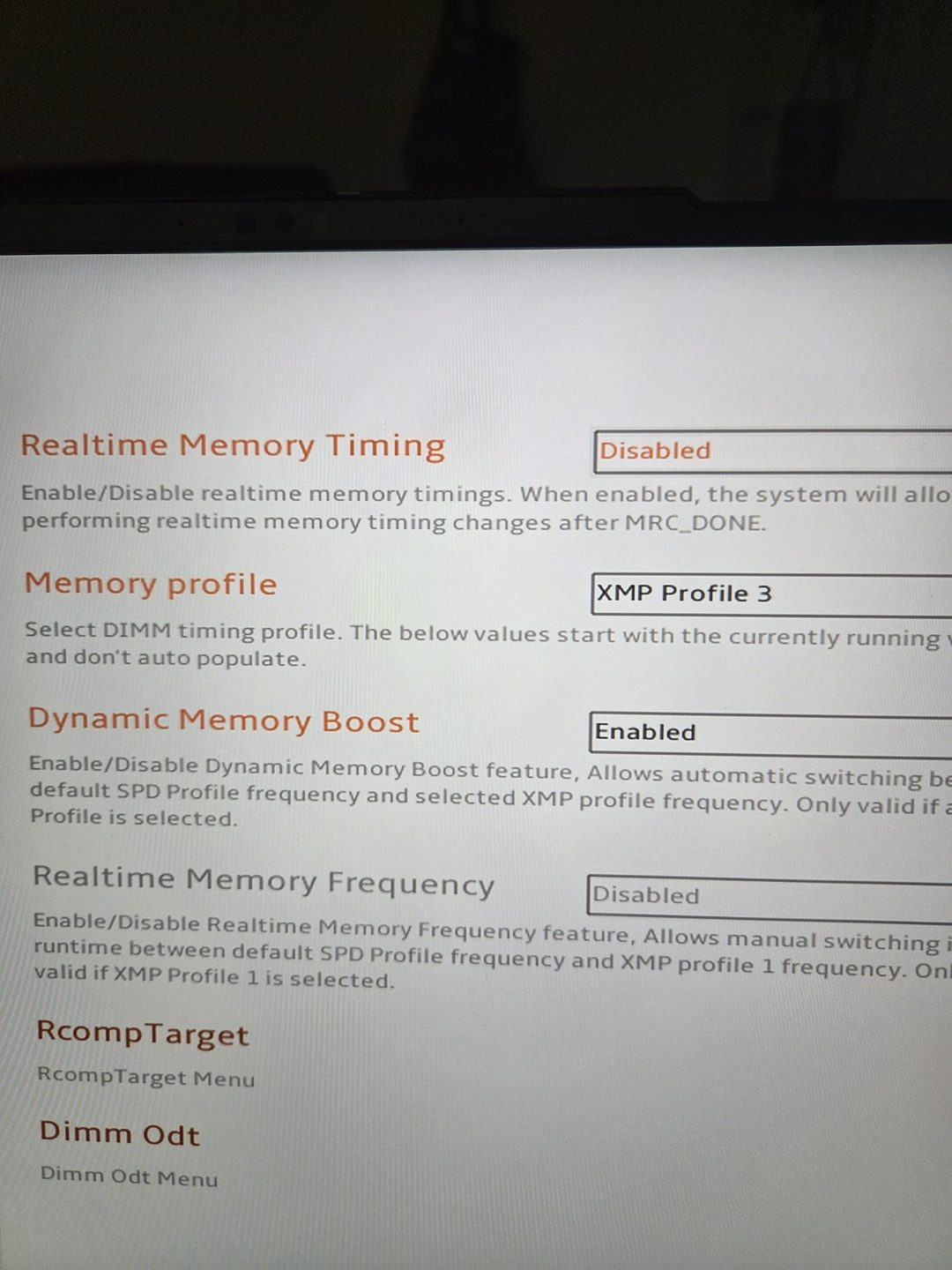
I initially tried enabling XMP1, but I never managed to get a stable boot. In addition, boot times became extremely long—sometimes taking several minutes, which clearly wasn’t acceptable.
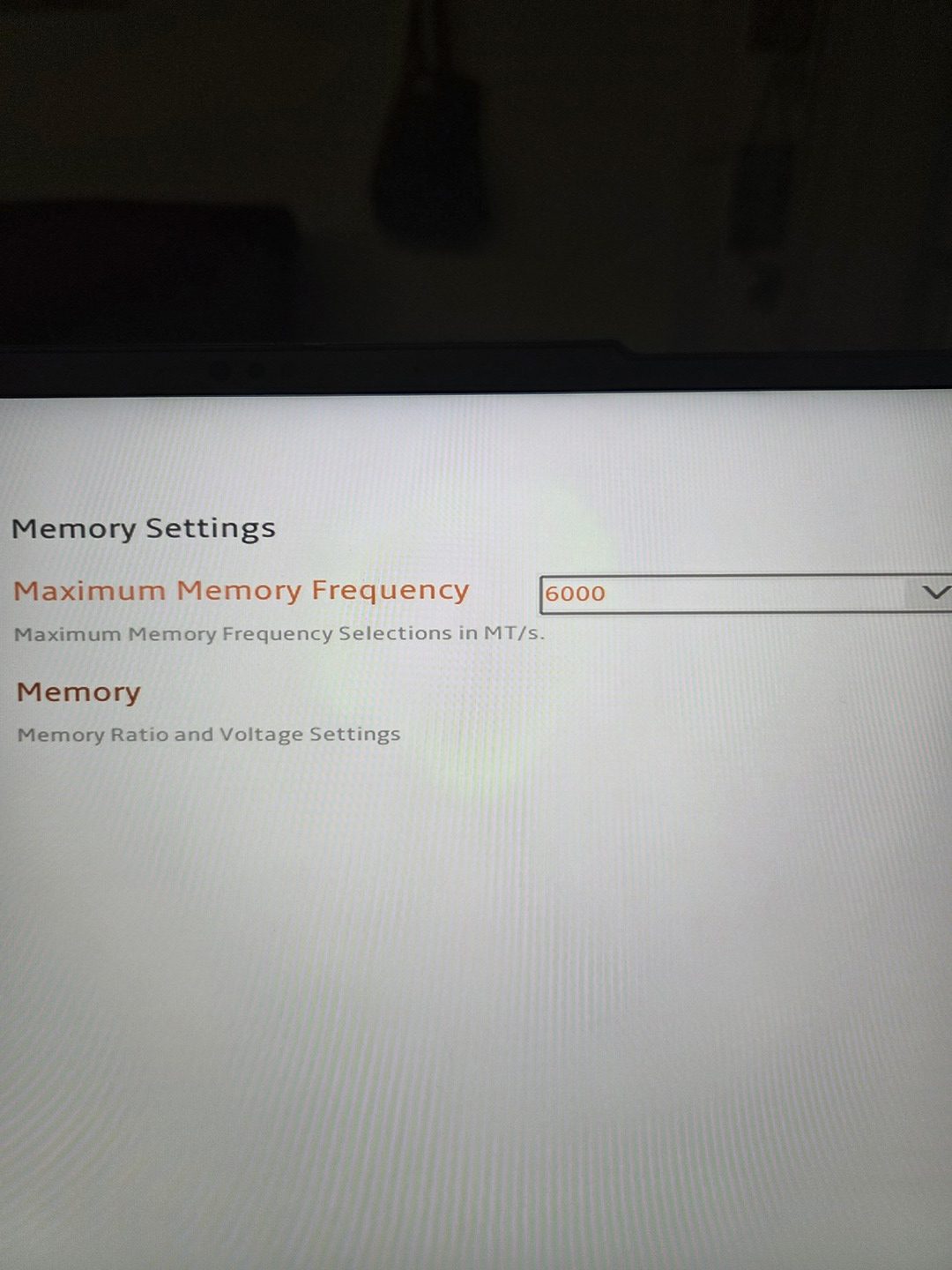
The best compromise I found was to manually limit the memory speed to 6000 MT/s and select XMP3, which corresponds to 6000 MT/s / CL40. This configuration has proven to be stable and offers a noticeable improvement over the default settings, without the excessive boot delays.
Getting max power on GPU
The concept
My primary goal was to achieve the best possible gaming performance. Based on my experience with gaming laptops, the bottleneck is almost always the GPU, while the CPU often sits below 50% load in real-world gaming scenarios.
To maximize performance, the GPU needs to operate as close as possible to its maximum power budget (140 W). Achieving this requires a combination of firmware, driver, and power-management tweaks. On this platform, the total power budget is shared between the CPU and the GPU, meaning that limiting CPU power directly benefits GPU headroom. In short: the less power the CPU wastes, the more the GPU can consume.
My objective was therefore to find the best balance between CPU efficiency (performance per watt) and maximum sustained GPU power.
At a high level, this involved the following steps:
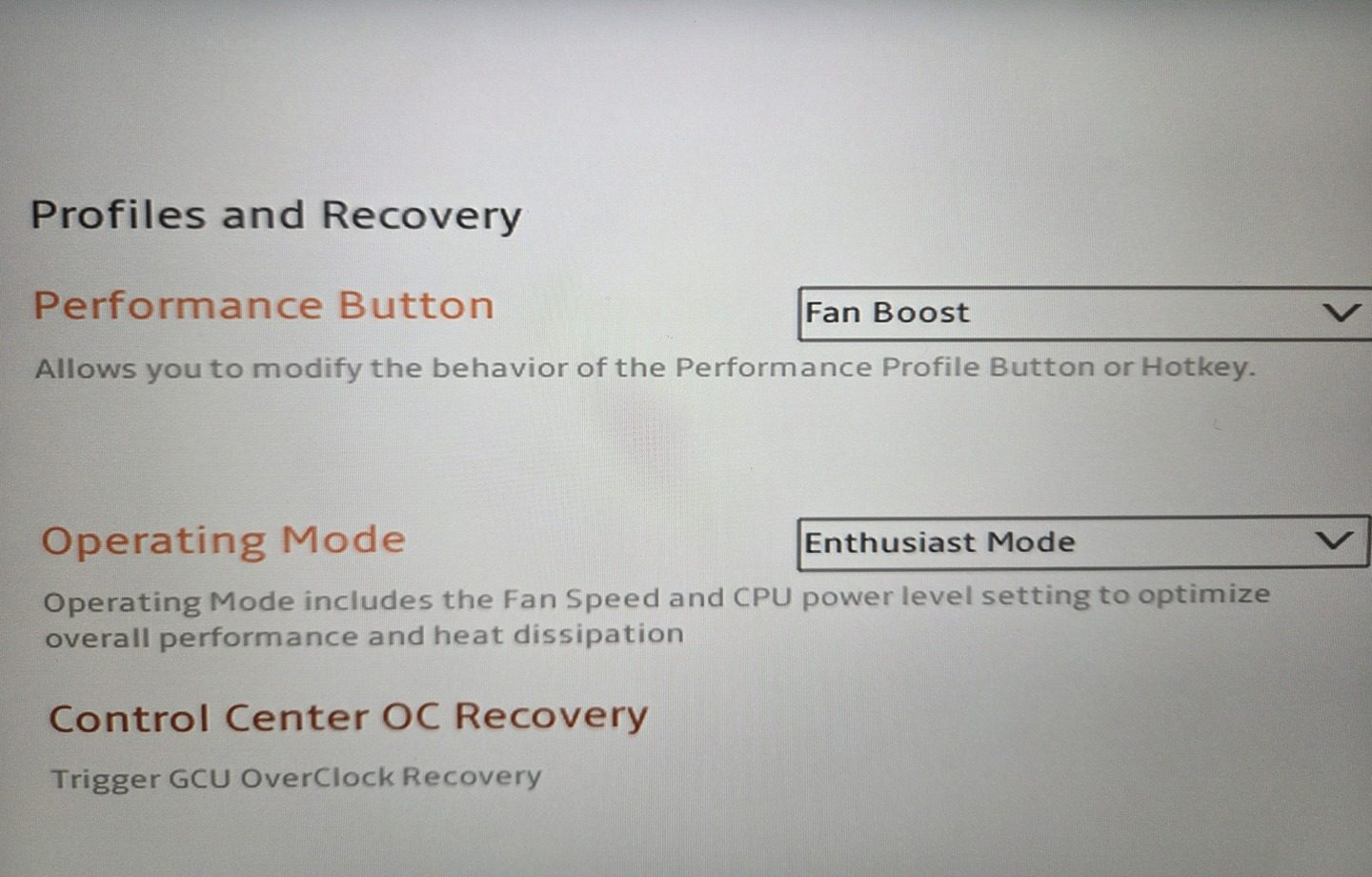
- Setting the system to “Enthusiast Mode” in the BIOS
- Limiting CPU power to free up thermal and electrical budget
- Installing the NVIDIA proprietary drivers
- Switching the system to dGPU-only mode in the BIOS, as Hybrid mode caps GPU power at 115 W
A quick note about this last point: I did not find any way to switch GPU modes from Linux itself—even using tools like supergfxctl. From Linux, it is only possible to switch to hybrid, integrated, or VFIO modes. Switching to dGPU-only is only available via the BIOS.
That said, this setup still offers the best of both worlds:
- Integrated GPU mode for battery life
- Dedicated RTX 5070 mode for gaming, with full power unlocked
The only downside is that switching between these modes requires a BIOS reboot—but once configured, it works reliably.
CPU Undervolting
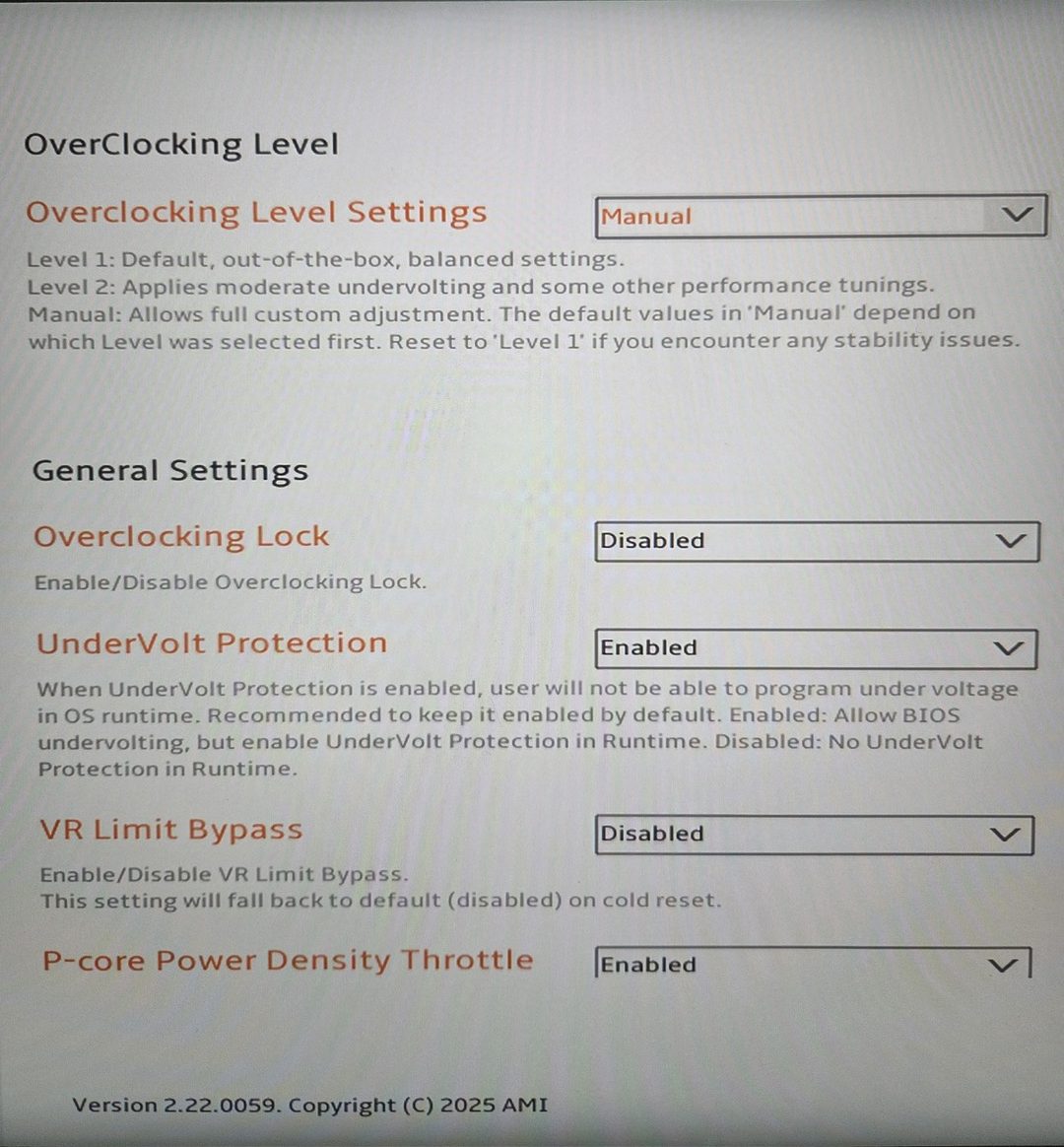
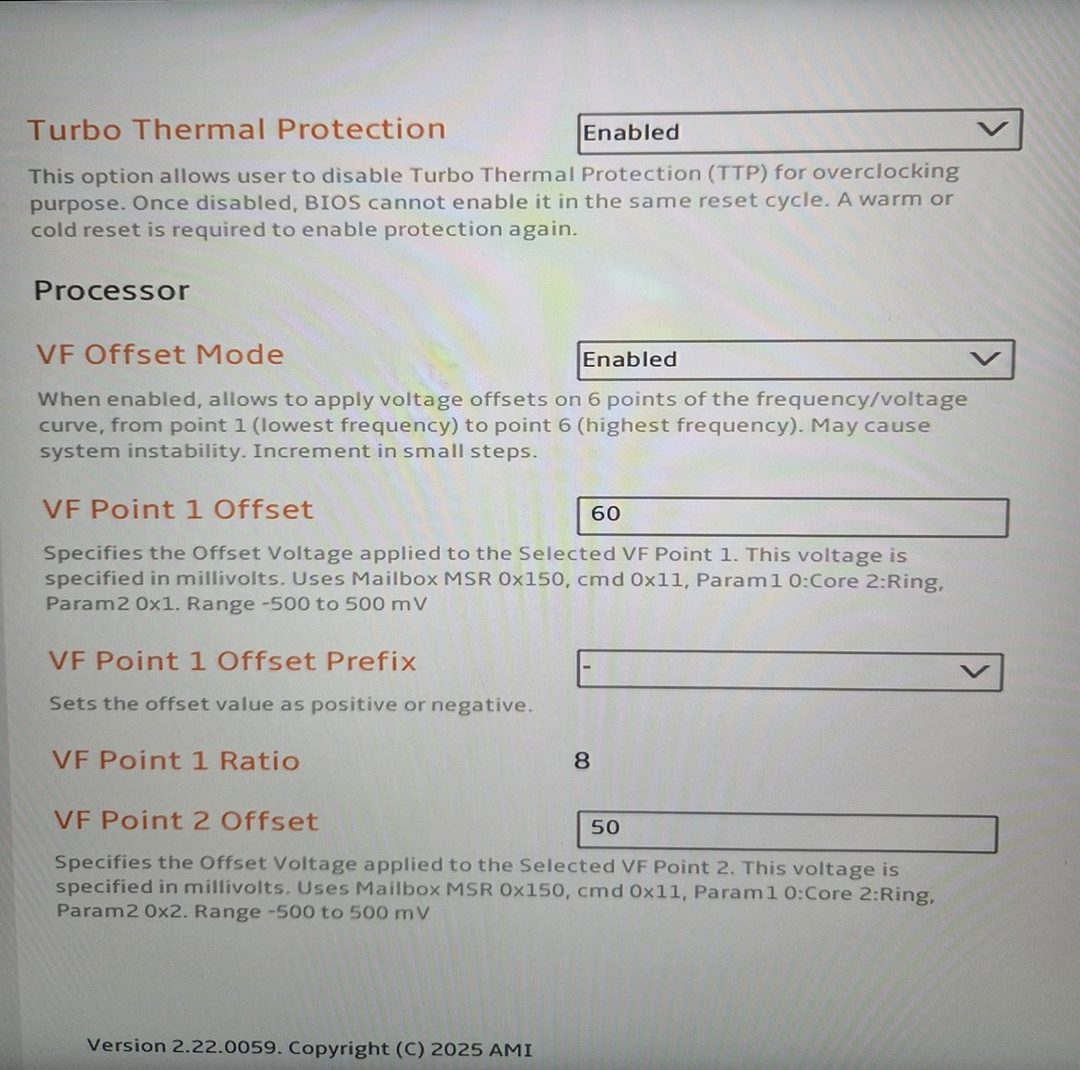
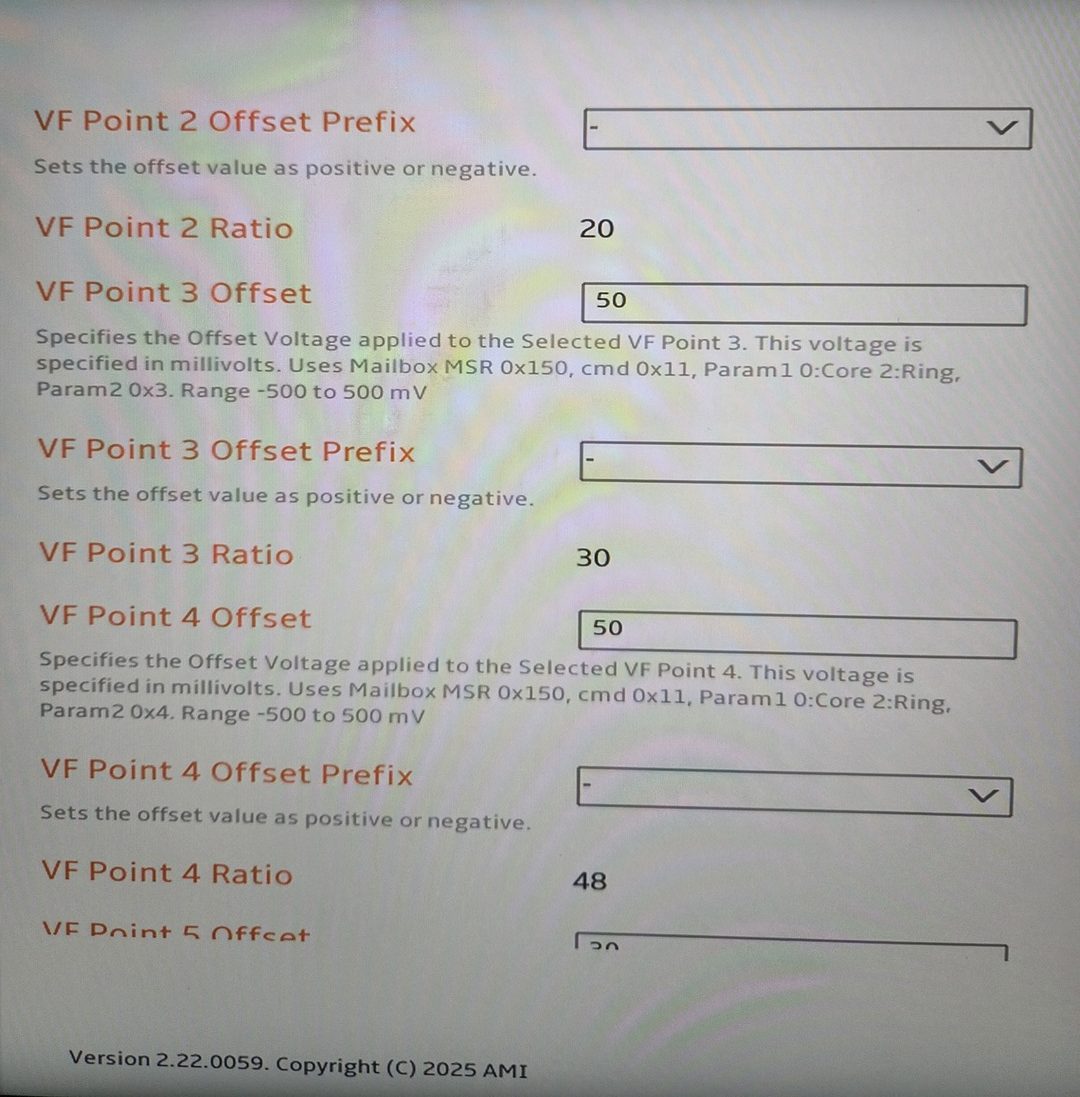
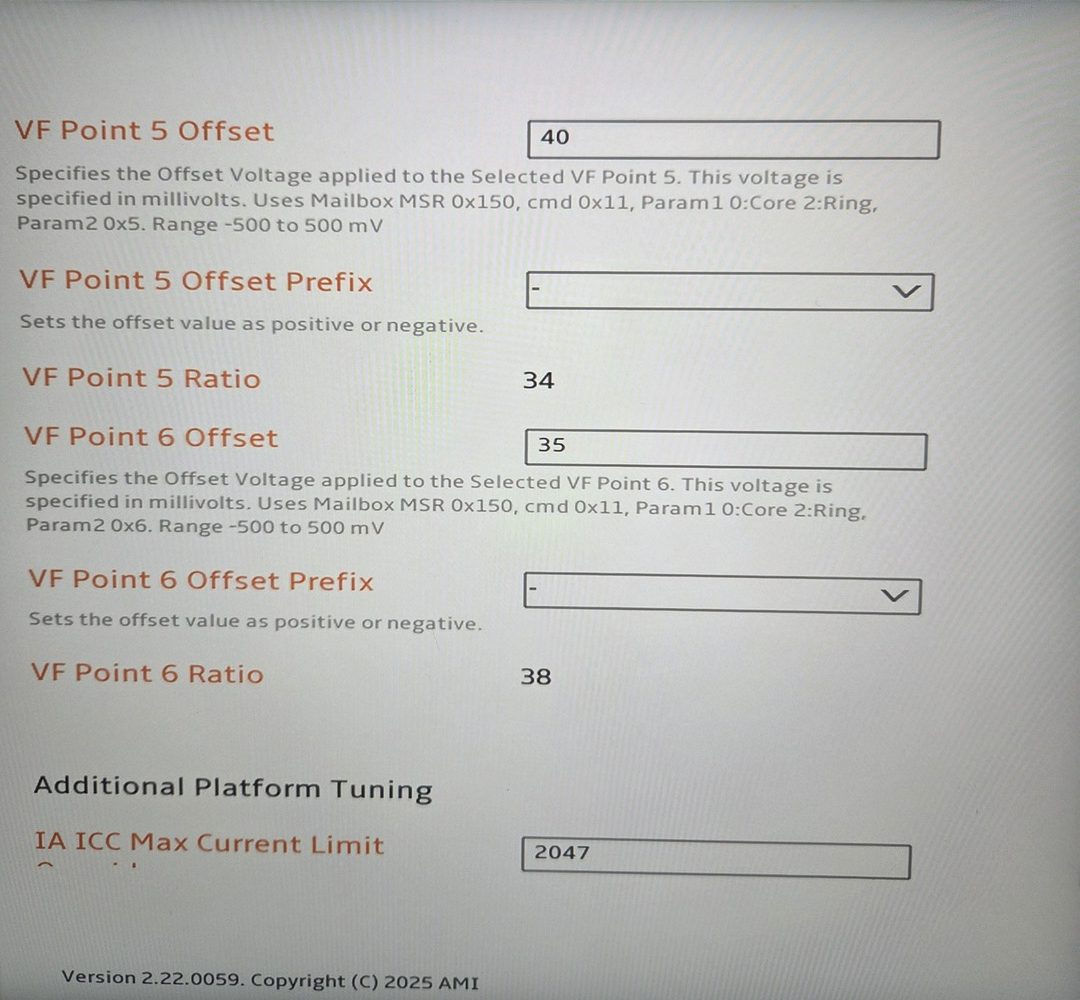
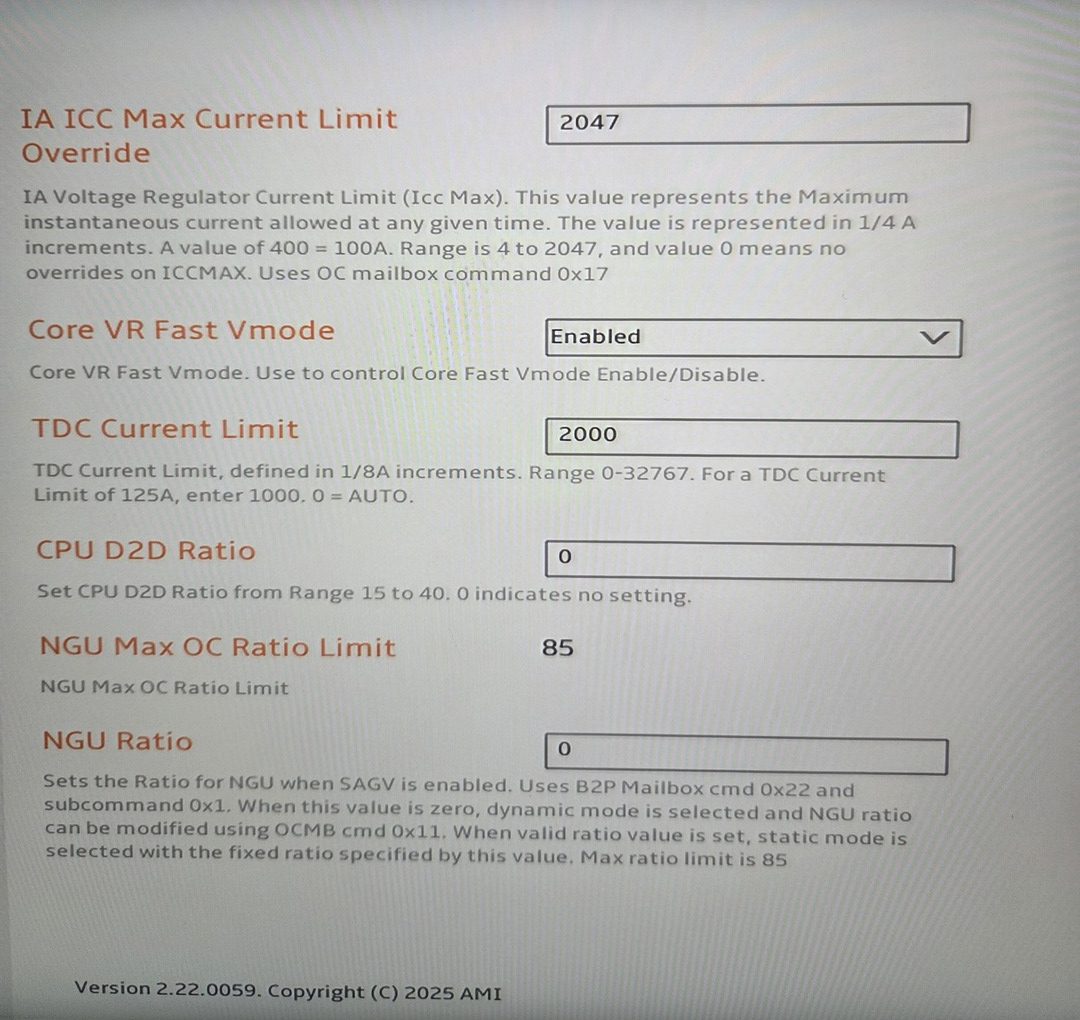
Undervolting on a Core Ultra 9 is fairly complex, mainly because several voltage domains are involved: Core, Ring, and VF points 1 to 6. All of these parameters can be adjusted directly from the BIOS on the XMG Pro 16 m25 once advanced options are unlocked.
For each configuration change, I systematically ran two different types of tests:
- Full CPU load (stress test)
This was used purely to validate stability. In practice, the CPU always ends up maxing out around 75 W, as it aggressively boosts frequency until it reaches its thermal limit, which appears to be 94 °C on the Pro 16 m25. - “Gaming-like” workload
This scenario is more representative of real usage. The goal here was to identify the settings that allow the highest sustained frequencies, which translates to maximum compute performance within the thermal and power budget.
One important takeaway from this process is that aggressive undervolting is not always beneficial. Even when fully stable, too much undervolting can actually cause the CPU to reduce its operating frequency in order to compensate for the reduced available voltage and power.
In other words, stability alone is not a sufficient metric: the best results came from moderate undervolting, where the CPU maintains higher clocks rather than chasing the lowest possible voltage.
Below are a few screenshots of the BIOS settings used during this tuning process:
GPU
Unfortunately, there is no straightforward way to undervolt NVIDIA GPUs on Linux. However, overclocking effectively forces the GPU to operate at lower voltages for a given frequency. In practice, this acts like an undervolt: the GPU attempts to reach higher clocks, but within the power and thermal limits, it simply stabilizes at the highest achievable frequency for that voltage.
To push this further, I followed guidance from both ArchWiki and other community sources that leverage the NVIDIA API in Python. Using this method, I applied a clock offset of 300 MHz with nvmlDeviceSetGpcClkVfOffset.
In simple terms, this means that for any given target frequency, the GPU will now use the voltage of that frequency minus the offset. Effectively, this achieves a mild undervolt, improving efficiency without sacrificing stability or maxing out thermal limits.
Tests
As explained earlier, I ran two types of tests: stress tests and in-game benchmarks. The goal was to identify the sweet spot between CPU stability, maximum GPU power, and the highest FPS.
CPU Stress Test
For CPU stress testing, I used: stress-ng --cpu 24 --cpu-method fft --timeout 5m. While the test was running, I monitored three key metrics using Tuxedo Control Center:
- CPU temperature – lower is better, as it frees more thermal headroom for the GPU
- Maximum stable frequency – higher is better, since higher frequency equals more compute power
- Power consumption (Watts) – lower is better, because it leaves more power available for the GPU
| Undervolt settings | temperature (°C) | Stabilized frequency (Ghz) | Watts |
|---|---|---|---|
| Bios option “Level 2” | 87 | 4.6 | 90 |
| 0 / 50 / 30 / 0 / 20 / 0 – 45 / 45 / 45 / 40 / 40 / 35 | 85 | 4.7 | 85 |
| 80 / 70 / 50 / 0 / 30 / 0 – 70 / 70 / 60 / 55 / 55 / 45 | 85 | 4.4 | 85 |
| 60 / 50 / 65 / 65 / 30 / 0 – 45 / 45 / 55 / 40 / 40 / 35 | crash | crash | crash |
| 60 / 50 / 50 / 50 / 30 / 0 – 45 / 45 / 50 / 40 / 40 / 35 | 84 | 4.7 | 85 |
In-Game Benchmarks
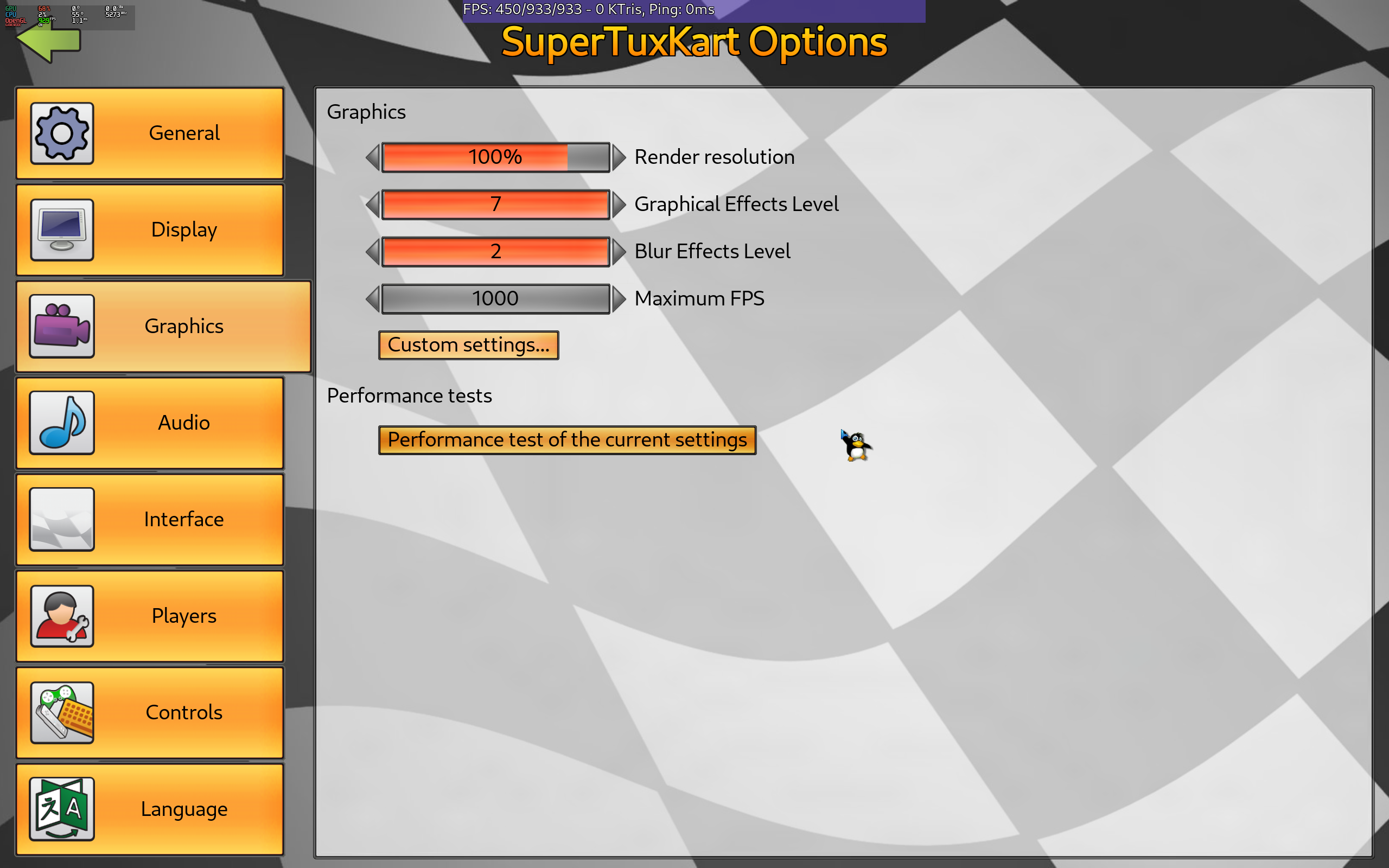
During testing, I also monitored GPU power consumption. Although it never hit the theoretical 145 W maximum, it stably hovered between 130–135 W. The best FPS results coincided with these higher GPU power levels.
For each scenario, I configured both long-term and short-term CPU power limits, for example: 60 W long-term and 95 W short-term.
|
1 2 3 4 5 |
sudo powercap-set intel-rapl-mmio -z 0 -c 0 -l 65000000 sudo powercap-set intel-rapl-mmio -z 0 -c 0 -s 1000000 sudo powercap-set intel-rapl-mmio -z 0 -c 1 -l 95000000 sudo powercap-set intel-rapl-mmio -z 0 -c 1 -s 1000000 |
| Long / short term | min | average | max |
|---|---|---|---|
| 60 / 95 | 113 | 158 | 183 |
| 60 / 80 | 132 | 158 | 182 |
| 60 / 70 | 130 | 158 | 182 |
| 50 / 60 | 135 | 165 | 190 |
The final settings were tuned for SuperTuxKart, but I also tested CPU-heavy games such as The Last of Us Remastered to ensure performance remained optimal.
Overall, the best balance I found was with CPU power limits of 55 W long-term / 65 W short-term, providing both stability and maximum GPU utilization.
After completing all the tests, I decided to leverage gamemoderun to automatically execute scripts when games start and stop. This allows me to apply optimizations such as CPU power limits and GPU undervolting only while gaming, keeping the system in a more conservative state at other times.
Start Script:
|
1 2 3 4 5 6 7 8 9 10 11 12 13 14 15 16 |
#!/bin/bash # Limit CPU power to give more for the GPU # longterm : limit to 55w sudo powercap-set intel-rapl-mmio -z 0 -c 0 -l 55000000 sudo powercap-set intel-rapl-mmio -z 0 -c 0 -s 1000000 # short term: allow 65w for 1 seconds sudo powercap-set intel-rapl-mmio -z 0 -c 1 -l 65000000 sudo powercap-set intel-rapl-mmio -z 0 -c 1 -s 1000000 # undervolt the gpu sudo .local/bin/nvidia_undervolt.sh # keyboard color sudo .local/bin/keyboard_gaming.sh |
End Script:
|
1 2 3 4 5 6 7 8 9 10 11 |
#!/bin/bash # restore CPU power limit to default ones sudo powercap-set intel-rapl-mmio -z 0 -c 0 -l 210000000 sudo powercap-set intel-rapl-mmio -z 0 -c 0 -s 55967744 sudo powercap-set intel-rapl-mmio -z 0 -c 1 -l 210000000 sudo powercap-set intel-rapl-mmio -z 0 -c 1 -s 2440 # restore keyboard color sudo .local/bin/keyboard_color.sh |
Nvidia Undervolt Script:
|
1 2 3 4 5 |
#!/usr/bin/env python from pynvml import * nvmlInit() device = nvmlDeviceGetHandleByIndex(0) nvmlDeviceSetGpcClkVfOffset(device,300) |
These scripts ensure that the system automatically maximizes GPU performance and optimizes CPU power for each gaming session, without requiring manual adjustments.
More details about keyboard scripts and automation will be covered in the next chapter.
Misc / Bonus
In this section, I’m sharing some additional tips and insights about using this laptop under Linux. Keep in mind that their relevance or effectiveness may change over time with software updates or new drivers.
Tuxedo control center
Arch Linux provides the tuxedo-control-center-bin package via the AUR. In practice, I found it mostly redundant under Linux. While it allows adjusting some CPU settings, I prefer automating everything with scripts and gamemoderun rather than doing manual tweaks.
The only situation where it proved useful was for monitoring CPU temperatures and power consumption during benchmarking. That said, there are plenty of alternative tools on Linux that can provide the same information more flexibly.
Battery profile
On Linux, the battery profile resets at each boot. I wanted to set it to “stationary” to help extend battery lifespan.
The battery profile is exposed via: /sys/devices/platform/tuxedo_keyboard/charging_profile/charging_profile
Unfortunately, it cannot be persisted using sysctl.
Following the guidance from the systemd Arch Linux wiki, I created a tmpfiles entry at /etc/tmpfiles.d/tuxedo_settings.conf to automatically apply the desired profile at boot:
|
1 2 |
# Path Mode UID GID Age Argument w /sys/devices/platform/tuxedo_keyboard/charging_profile/charging_profile - - - - stationary |
This ensures that the battery profile is set correctly every time the laptop starts, without manual intervention.
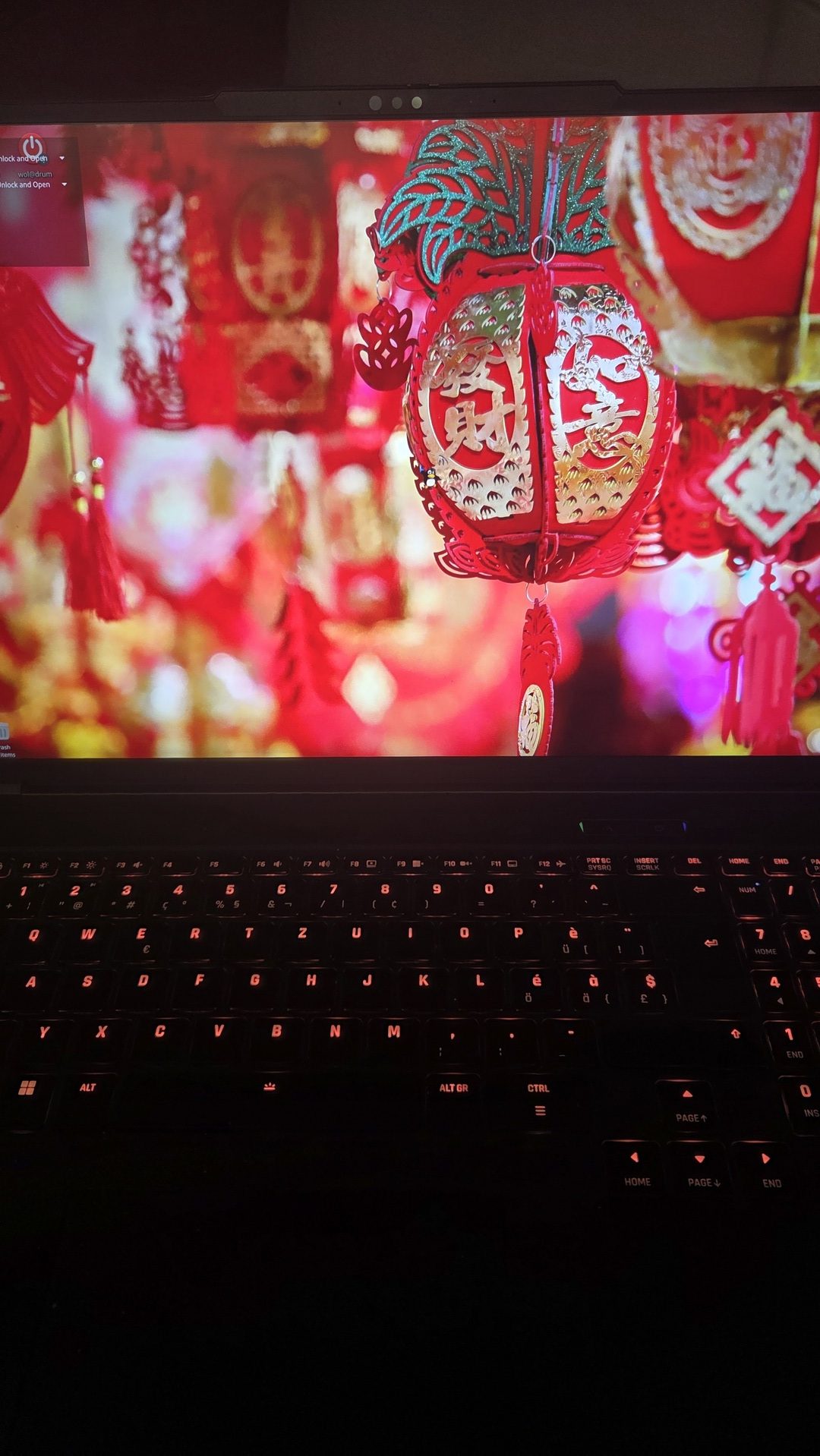
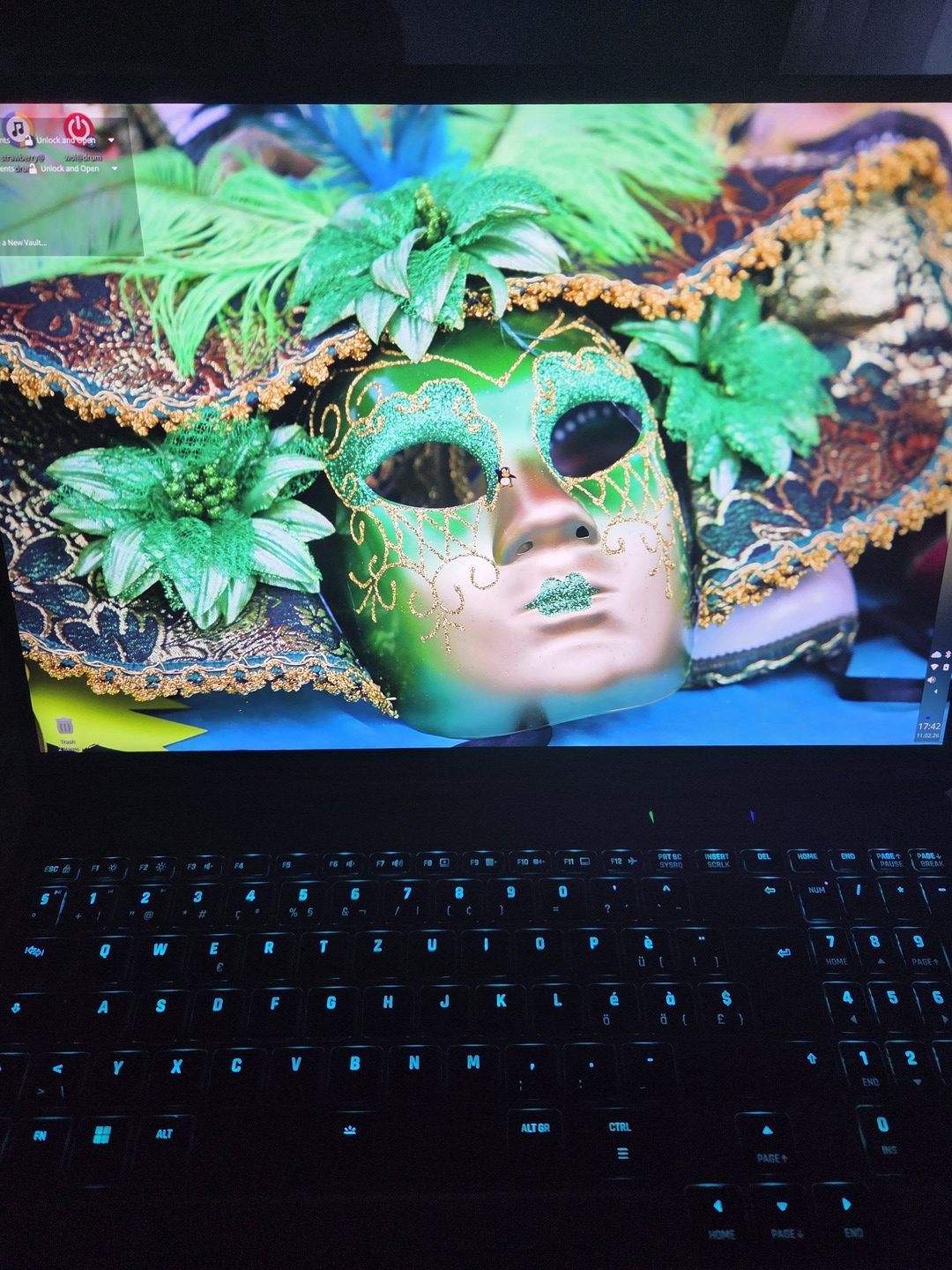
Keyboard color
I wasn’t able to replicate the exact “cool” lighting effects that the XMG Control Center provides on Windows 11. However, under Linux, the keyboard backlight can be controlled like any other LED using the Tuxedo drivers. On Arch Linux, the relevant AUR package is: tuxedo-drivers-nocompatcheck-dkms.
The “nocompatcheck” variant allows installing the driver on non-official Tuxedo hardware, including XMG laptops.
I then created a set of scripts to dynamically control the keyboard color based on the desktop background or whether GameModeRun is active.
I’m using Plasma’s “Picture of the Day” feature with the Bing provider for my desktop background. The scripts are stored in ~/.local/bin :
- keyboard_color.sh – Sets the keyboard color based on the current desktop image.
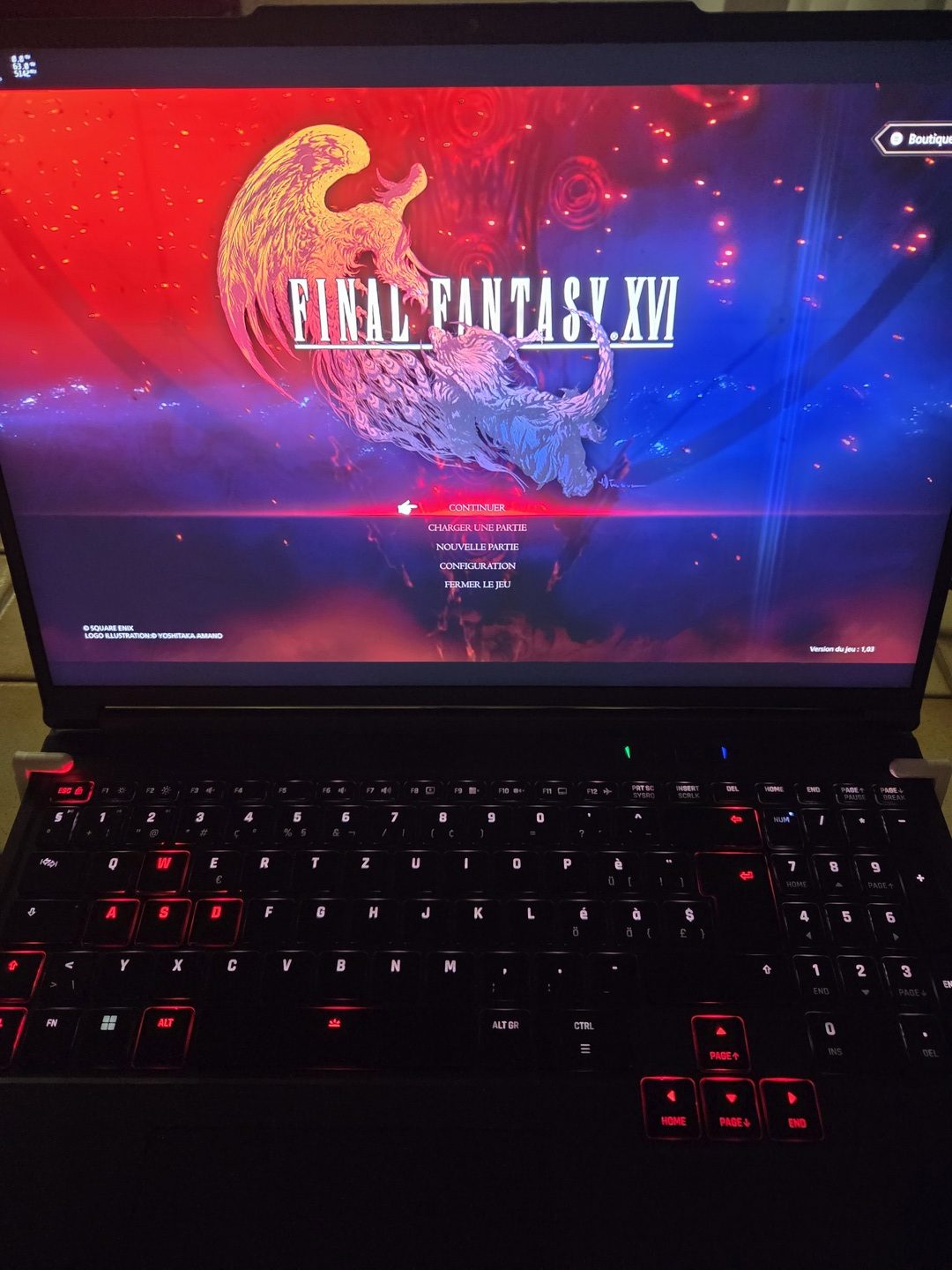
- keyboard_gaming.sh – Applies a dedicated color setup for gaming; triggered by gamemoderun
- wallpaper_check.sh – Runs at Plasma session start, checks for background image changes, and calls keyboard_color.sh if necessary.
Below are the three scripts:
keyboard_color.sh
|
1 2 3 4 5 6 7 8 9 10 11 12 13 14 15 16 17 18 19 20 21 22 23 24 25 26 27 28 29 30 31 32 33 34 35 36 37 38 39 40 41 42 43 44 45 46 47 48 49 50 51 52 53 54 55 56 |
#!/bin/bash # reduce RGB palette to get something more accurate for the LEDs. # only allows 3 value for each component : 0, 122, 255 quantize_rgb_3levels() { local r=$1 g=$2 b=$3 # array with values + names vals=("$r:R" "$g:G" "$b:B") # sort IFS=$'\n' sorted=($(sort -n <<<"${vals[*]}")) unset IFS declare -A out # the lowest value become 0 c_min=${sorted[0]#*:} out[$c_min]=0 # the medium value become 122 c_mid=${sorted[1]#*:} out[$c_mid]=122 # the greatest value become 255 c_max=${sorted[2]#*:} out[$c_max]=255 echo "${out[R]} ${out[G]} ${out[B]}" } # Find the lastest background image WALLPAPER=$(find ~/.cache/plasma_engine_potd -type f ! -name '*.json' \ -printf '%T@ %p\n' \ | sort -nr \ | head -n1 \ | cut -d' ' -f2-) [ -f "$WALLPAPER" ] || exit 1 # Use image magick to extract the dominant color read R G B <<< "$(magick "$WALLPAPER" \ -resize 100x100! \ -colors 1 \ -format "%[fx:int(255*r)] %[fx:int(255*g)] %[fx:int(255*b)]" info:-)" read R_Q G_Q B_Q < <(quantize_rgb_3levels "$R" "$G" "$B") echo "R=$R_Q G=$G_Q B=$B_Q" #R=$(( R * 35 / 100 )) #B=$(( B * 35 / 100 )) # set leds colors for led in /sys/class/leds/rgb:kbd_backlight*; do printf "%d %d %d\n" "$R_Q" "$G_Q" "$B_Q" > "$led/multi_intensity" & done |
keyboard_gaming.sh:
|
1 2 3 4 5 6 7 8 9 10 11 12 13 14 15 16 17 18 19 20 21 22 23 24 25 26 27 28 29 30 31 32 33 34 35 36 37 38 39 40 41 42 43 44 45 46 47 48 49 50 51 52 53 54 55 56 57 58 59 60 61 62 63 64 |
#!/bin/bash # Set which color to use for gaming mode R=255 G=0 B=0 # Set a low intensity white for all keys by default for led in /sys/class/leds/rgb:kbd_backlight*; do printf "%d %d %d\n" "9" "20" "9" > "$led/multi_intensity" done # Set the gaming color for special keys # LEFT CTRL printf "%d %d %d\n" "$R" "$G" "$B" > "/sys/class/leds/rgb:kbd_backlight/multi_intensity" # LEFT ALT printf "%d %d %d\n" "$R" "$G" "$B" > "/sys/class/leds/rgb:kbd_backlight_4/multi_intensity" # SPACE printf "%d %d %d\n" "$R" "$G" "$B" > "/sys/class/leds/rgb:kbd_backlight_7/multi_intensity" # ALT GR #printf "%d %d %d\n" "$R" "$G" "$B" > "/sys/class/leds/rgb:kbd_backlight_10/multi_intensity" # RIGTH CTRL #printf "%d %d %d\n" "$R" "$G" "$B" > "/sys/class/leds/rgb:kbd_backlight_12/multi_intensity" # LEFT printf "%d %d %d\n" "$R" "$G" "$B" > "/sys/class/leds/rgb:kbd_backlight_13/multi_intensity" # UP printf "%d %d %d\n" "$R" "$G" "$B" > "/sys/class/leds/rgb:kbd_backlight_14/multi_intensity" # RIGTH printf "%d %d %d\n" "$R" "$G" "$B" > "/sys/class/leds/rgb:kbd_backlight_15/multi_intensity" # DOWN printf "%d %d %d\n" "$R" "$G" "$B" > "/sys/class/leds/rgb:kbd_backlight_18/multi_intensity" # LEFT SHIFT printf "%d %d %d\n" "$R" "$G" "$B" > "/sys/class/leds/rgb:kbd_backlight_22/multi_intensity" # A printf "%d %d %d\n" "$R" "$G" "$B" > "/sys/class/leds/rgb:kbd_backlight_44/multi_intensity" # S printf "%d %d %d\n" "$R" "$G" "$B" > "/sys/class/leds/rgb:kbd_backlight_45/multi_intensity" # D printf "%d %d %d\n" "$R" "$G" "$B" > "/sys/class/leds/rgb:kbd_backlight_46/multi_intensity" # W printf "%d %d %d\n" "$R" "$G" "$B" > "/sys/class/leds/rgb:kbd_backlight_66/multi_intensity" # ENTER printf "%d %d %d\n" "$R" "$G" "$B" > "/sys/class/leds/rgb:kbd_backlight_77/multi_intensity" # BACK printf "%d %d %d\n" "$R" "$G" "$B" > "/sys/class/leds/rgb:kbd_backlight_98/multi_intensity" # ESC printf "%d %d %d\n" "$R" "$G" "$B" > "/sys/class/leds/rgb:kbd_backlight_105/multi_intensity" |
wallpaper_check.sh:
|
1 2 3 4 5 6 7 8 9 10 11 12 |
#!/bin/bash SCRIPT_RGB="sudo ~/.local/bin/keyboard_color.sh" # Filter to only get wallpaper change signals dbus-monitor --session "type='signal',interface='org.kde.PlasmaShell',member='wallpaperChanged'" | \ while read -r line; do if echo "$line" | grep -q "wallpaperChanged"; then echo "Wallpaper changed detected!" $SCRIPT_RGB fi done |
This setup allows the keyboard lighting to adapt dynamically to the desktop or gaming session, giving a visual feedback similar to the Windows XMG Control Center, but fully integrated into Linux.